How to Extract Text from Images on All Platforms: A Comprehensive Guide
Updated at Apr 16, 2025
5 min
In today's digital age, extracting text from images has become a valuable skill. Whether you need to convert scanned documents, extract text from images for translation, or extract important information from screenshots, being able to extract text from images can save you time and effort.
This article will guide you through extracting text from images on various platforms, including Windows, Mac, iPhone, and Android. We will explore the best tools and techniques for text extraction, along with practical tips to ensure successful conversion.
Why do you need to extract text from images?
There are several reasons why you need to extract text from images. Here are some of the most common ones:
1. Copying text from an image for a report or presentation.
2. Extracting contact information from a business card.
3. Converting handwritten notes into digital text.
4. Extracting text from scanned documents.
5. Converting a scanned document into editable text for further editing or translation
How to extract text from an image on Windows & Mac?
One of the most efficient ways to extract text from images on both Windows and Mac is by using Sider. Sider is a powerful AI sidebar that supports AI chat with ChatGPT, GPT-4, Bard, and Claude. In addition, Sider also offers many value-added features, such as ChatPDF, image painter, OCR, etc.
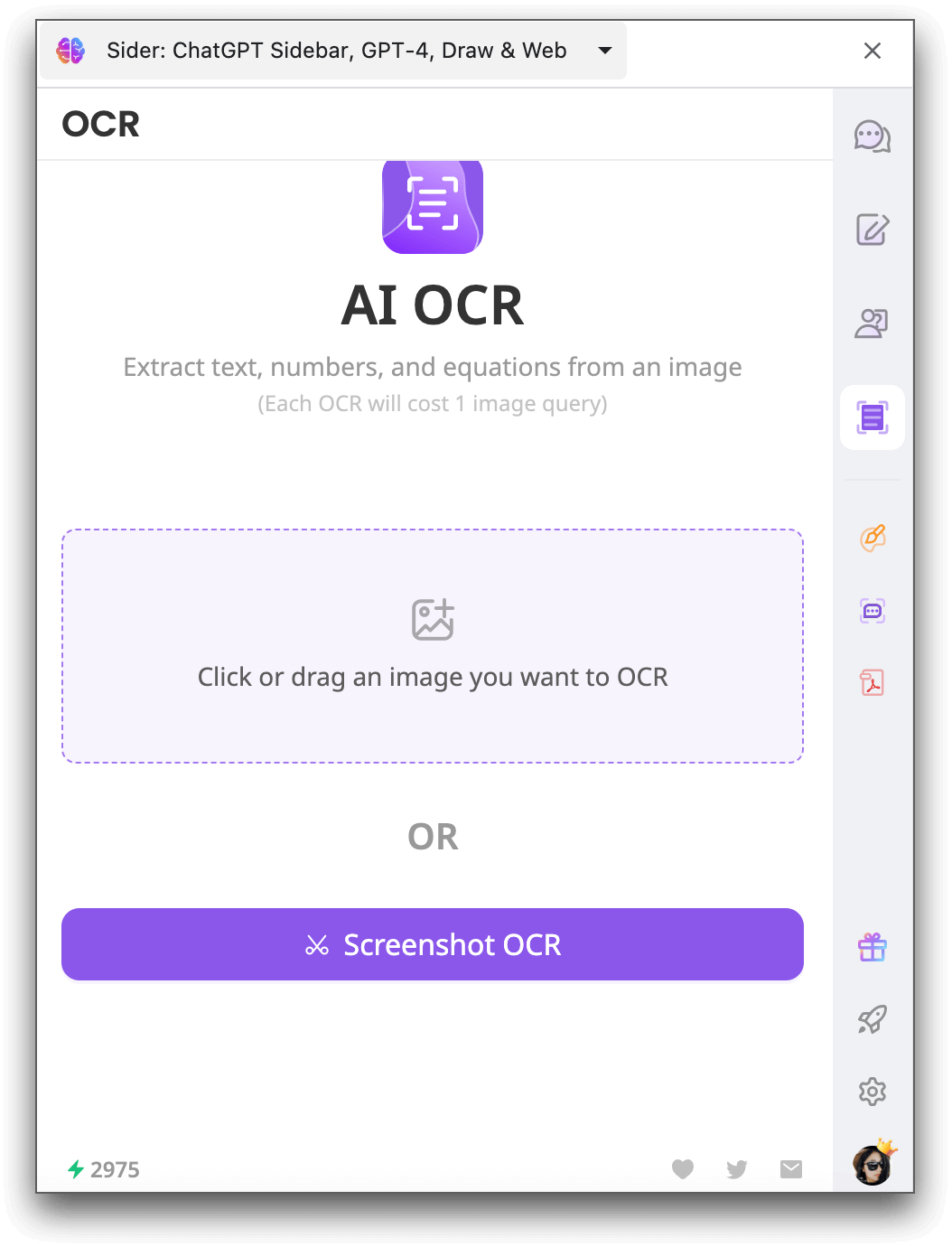
With advanced OCR (Optical Character Recognition) technology, Sider allows you to convert images to editable text with just a few clicks. Sider can extract text, numbers, and equations from images. Here's how you can use Sider to extract text from images:
Step 1. Download and install the Sider extension on your computer. Log in to it or create an account.
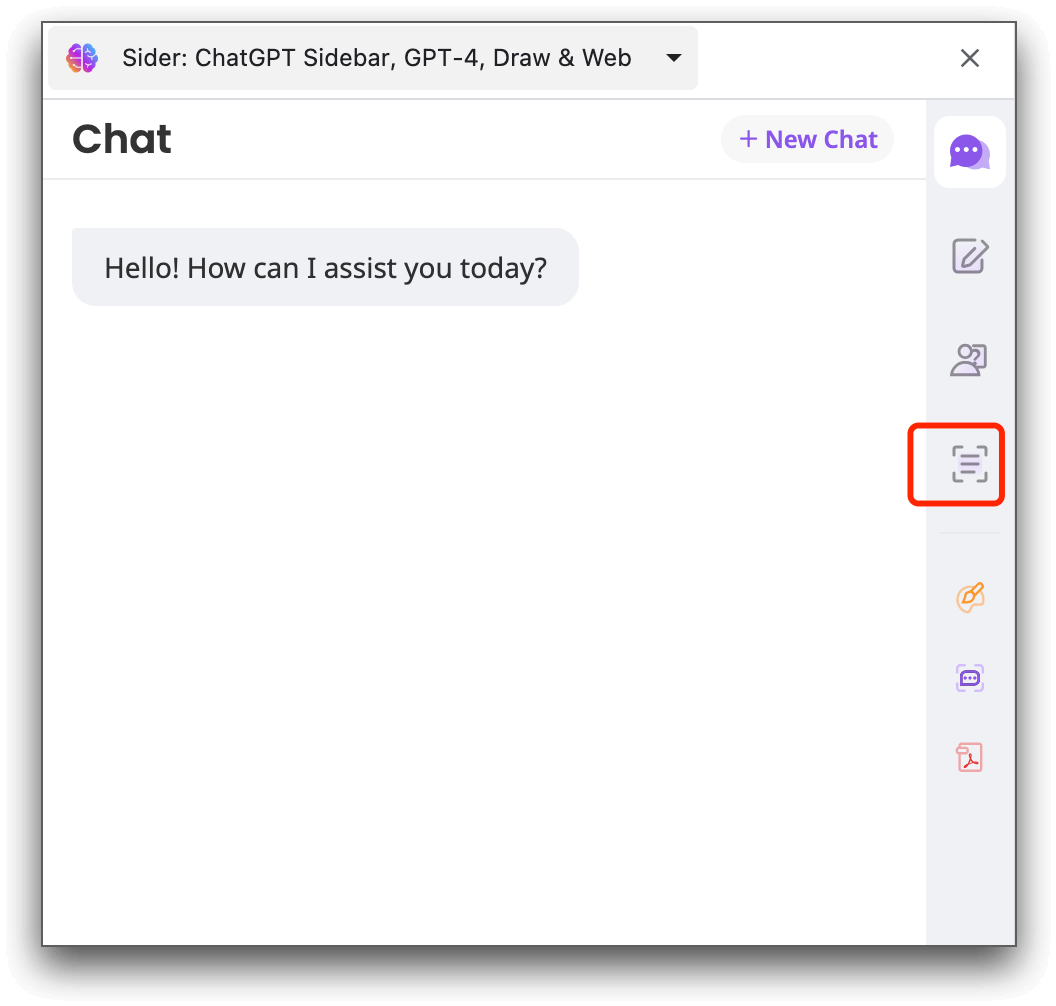
Step 2. Click the Sider icon on the extension bar to launch the sidebar. Hit the “OCR” icon on the left side of the sidebar.
Step 3. Upload the image you want to extract text from. Or you can take a screenshot and let Sider extract the text from it.
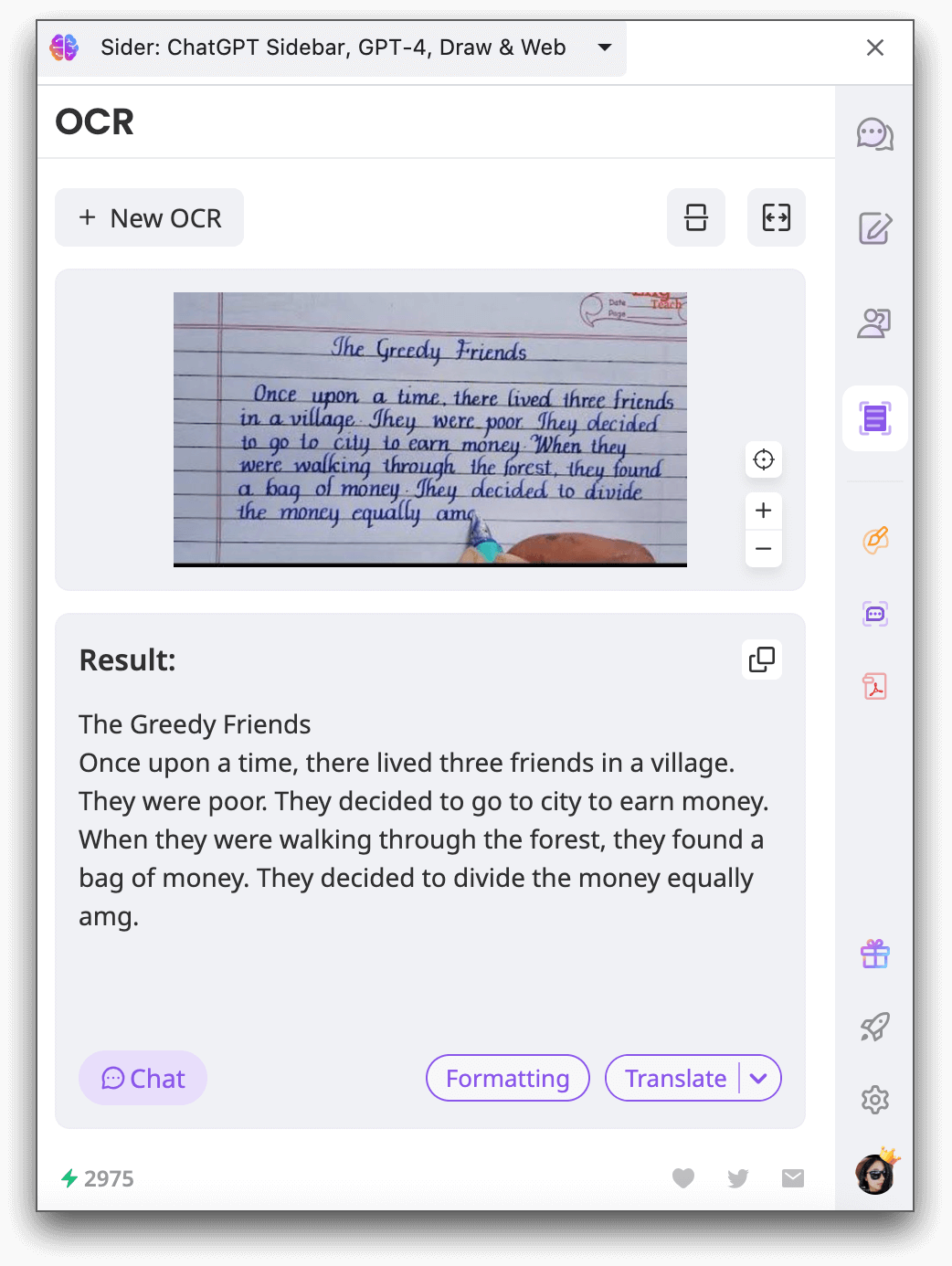
Step 4. Once the extraction is complete, you can copy the extracted text, start a chat based on it, or translate it for further use.
How to extract text from images on iPhone?
If you're an iPhone user, extracting text from images is a breeze with the built-in OCR feature of the Notes app. Here's how you can extract text from images on your iPhone:
Step 1. Open the Photos app and choose a photo or an image from the internet.
Step 2. Tap and hold on to a word in the photo. Adjust the selection by moving the grab points to include the desired text.
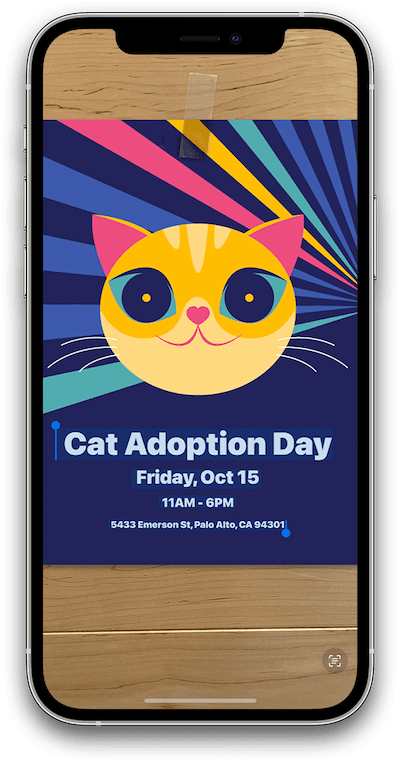
Step 3. Tap on the "Copy" option. If you want to select all the photo text, tap "Select All."
Step 4. Once you have copied the text, you can paste it into another app or share it with someone.
How to convert an image to text on Android?
Android users can use the built-in Google Lens of the gallery to extract text from images. Here's how you can do it:
Step 1. Open your smartphone's gallery and select the desired image.
Step 2. Look for the Lens icon in the screen's lower right corner and tap on it. This will take you to Google Lens.

Step 3. Within Google Lens, tap the "Text" option and choose the text you wish to copy.
Step 4. Finally, click "Copy text", and the selected text will be copied to your clipboard. You can paste it into another app or send it to others for later use.
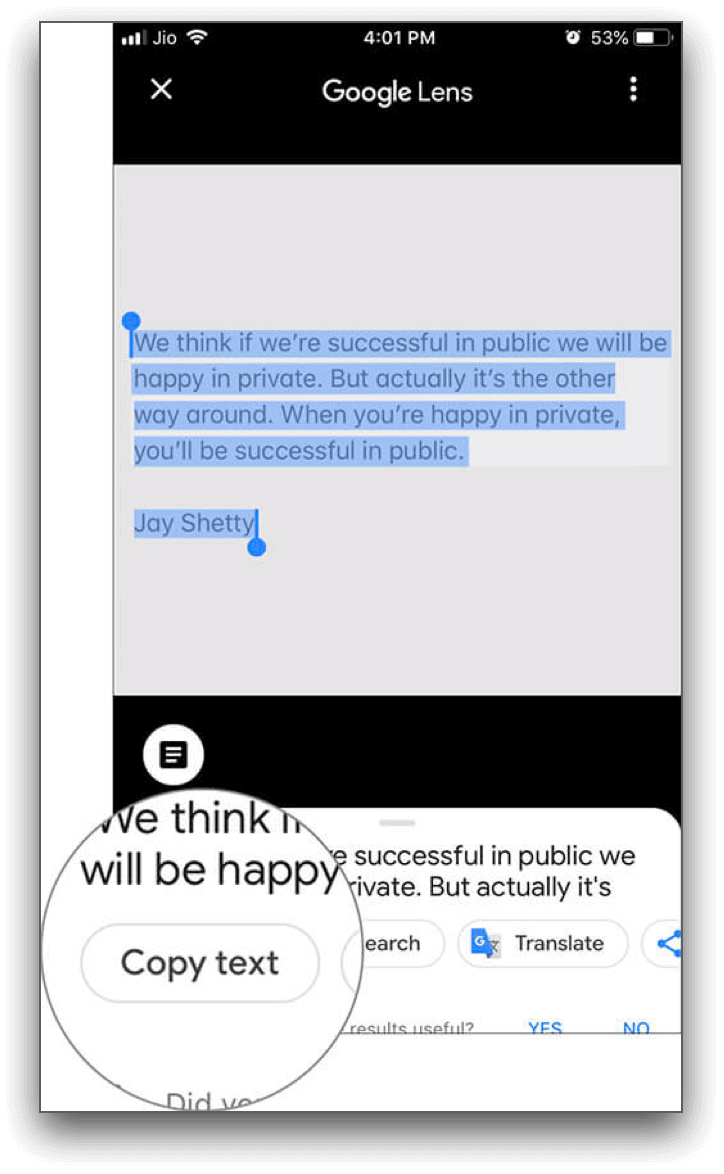
If your Android smartphone's gallery does not have the built-in lens option for copying text from images, you can use the Google Photos app instead. Here's how:
Step 1. Open the Google Photos app.
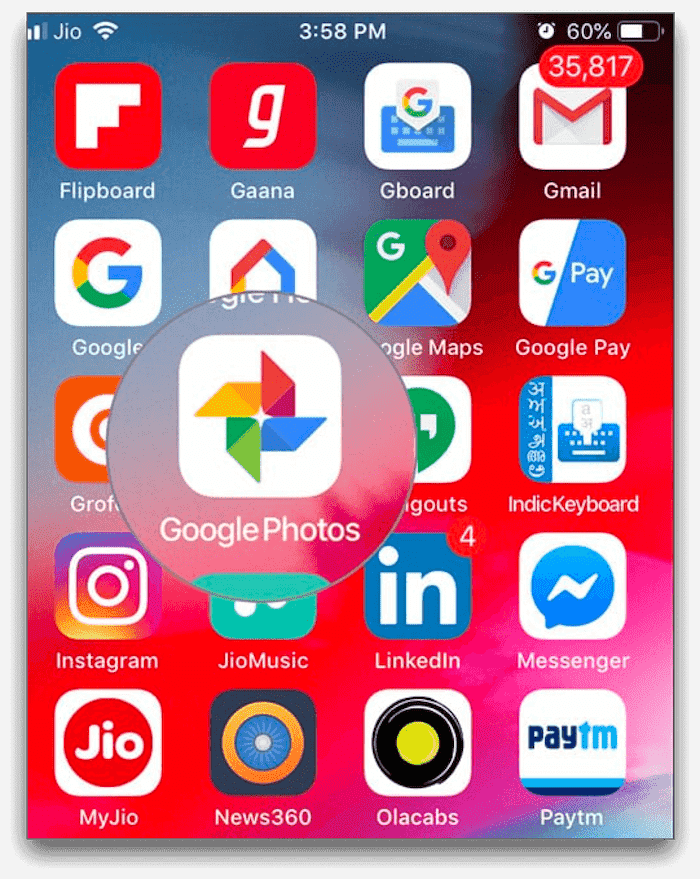
Step 2. Select the image from which you want to copy the text.
Step 3. Look for the Lens option at the bottom of the screen and tap on it.
Step 4. Within Lens, tap on the Text option and select the desired text.
Step 5. Finally, click "Copy text", and the text will be copied.
Practical tips for text extraction from image
While using OCR tools and apps can greatly simplify the process of extracting text from images, there are some practical tips you can follow for better results:
1. Use high-quality images: Clear and well-lit high-resolution images yield better results during text extraction.
2. Crop the image: If the image contains unnecessary elements or clutter, crop it to focus solely on the text you want to extract.
3. Enhance image quality: Adjust the image's brightness, contrast, and sharpness to improve OCR accuracy.
4. Use OCR software with language support: Choose OCR tools that support the language of the text you want to extract for more accurate results.
5. Proofread and correct extracted text: OCR may occasionally introduce errors, so it's essential to proofread and correct any inaccuracies in the extracted text.
Conclusion
Extracting text from images can be challenging, but with the right tools and techniques, it can be done efficiently. This article shows you how to extract text from images on all platforms using various tools and techniques. There's a solution whether you're using Windows, Mac, iPhone, or Android.
FAQs about extracting text from image
1. How can I extract text from a picture?
You can extract text from a picture using OCR software or apps designed explicitly for text extraction from images. These tools use advanced algorithms to recognize and convert text within images into editable text.
2. Can you pull text from a JPG?
Yes, you can extract text from a JPG image using OCR tools. JPG images are commonly supported by OCR software, allowing you to convert them into editable text.
3. Can Google extract text from an image?
Yes, Google offers an OCR feature that allows you to extract text from images. This feature is available in various Google apps, such as Google Keep, which can convert images to editable text on both Android and iOS devices.
4. What is the free AI to extract text from an image?
There are several free AI tools available for extracting text from images, such as Sider, Microsoft Azure Cognitive Services, and Google Cloud Vision OCR. These tools utilize AI algorithms to recognize and convert text within images.
5. Can iPhone extract text from an image?
Yes, iPhone users can extract text from images using the built-in OCR feature of the Photos and Notes app. This feature allows you to scan documents and extract text from the captured images.
Recent Articles

How to Master ChatPDF: Faster Insights from Dense Documents

The best X Auto-Translation alternative for fast, accurate docs

Samsung AI Translation Unavailable in Iran? Practical Workarounds

Persian translate tools: a practical guide to faster, accurate work

The Best Grok alternative for deep, cited research

Top 15 Features of AI Image Generator You’ll Actually Use