- Home
- Help Center
- Feature Guides
- Sider Code -Customize any website with plain words
Sider Code -Customize any website with plain words
Make any website work your way. Describe what you want, and AI customizes the page for you — no code needed.
What is Sider Code?
Sider Code is an AI-powered webpage customization tool that helps you modify almost any webpage using simple natural language.
Instead of writing code, you only need to describe what you want to change. Sider Code will understand your request and customize the page for you.
You can use Sider Code to:
- Add AI-powered features, such as adding a summary button for long articles or summarizing thousands of comments
- Remove distractions, such as ads, pop-ups, sidebars, or sponsored content
- Customize page appearance, such as switching to dark mode or changing page layout
For example, you can ask:
- “Add a button to summarize the comments”
- “Remove all ads from this page”
- “Hide the sidebar and make the article full-width”
- “Make this page cleaner and easier to read”
How to Set Up Sider Code
Before using Sider Code, you need to complete two quick setup steps:
- Enable User Scripts
- Install Sider Operator
These steps allow Sider Code to apply webpage changes and test/debug customizations automatically.
Step 1: Open Sider Code
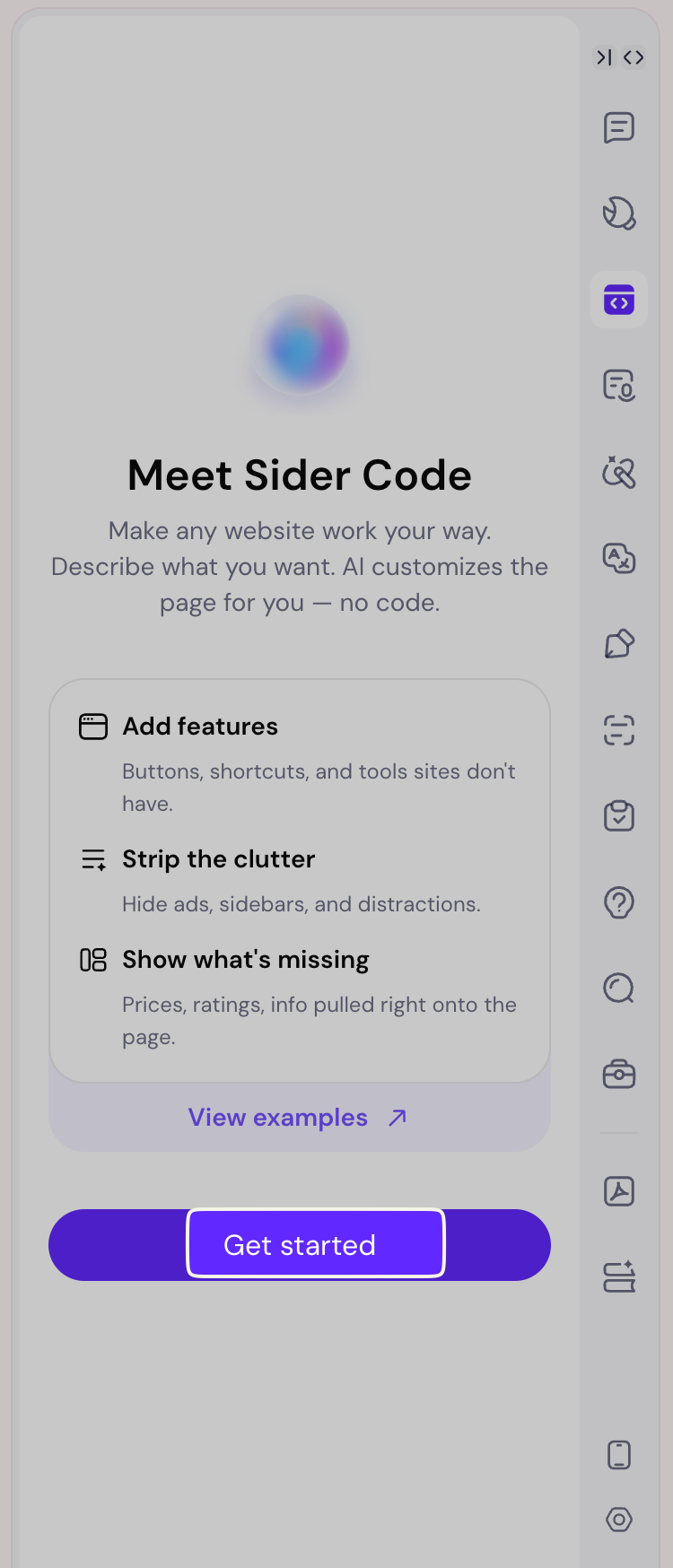
Open the Sider sidebar and click the Code icon.
You will see the Sider Code welcome page. Click Get started.
Step 2: Enable User Scripts
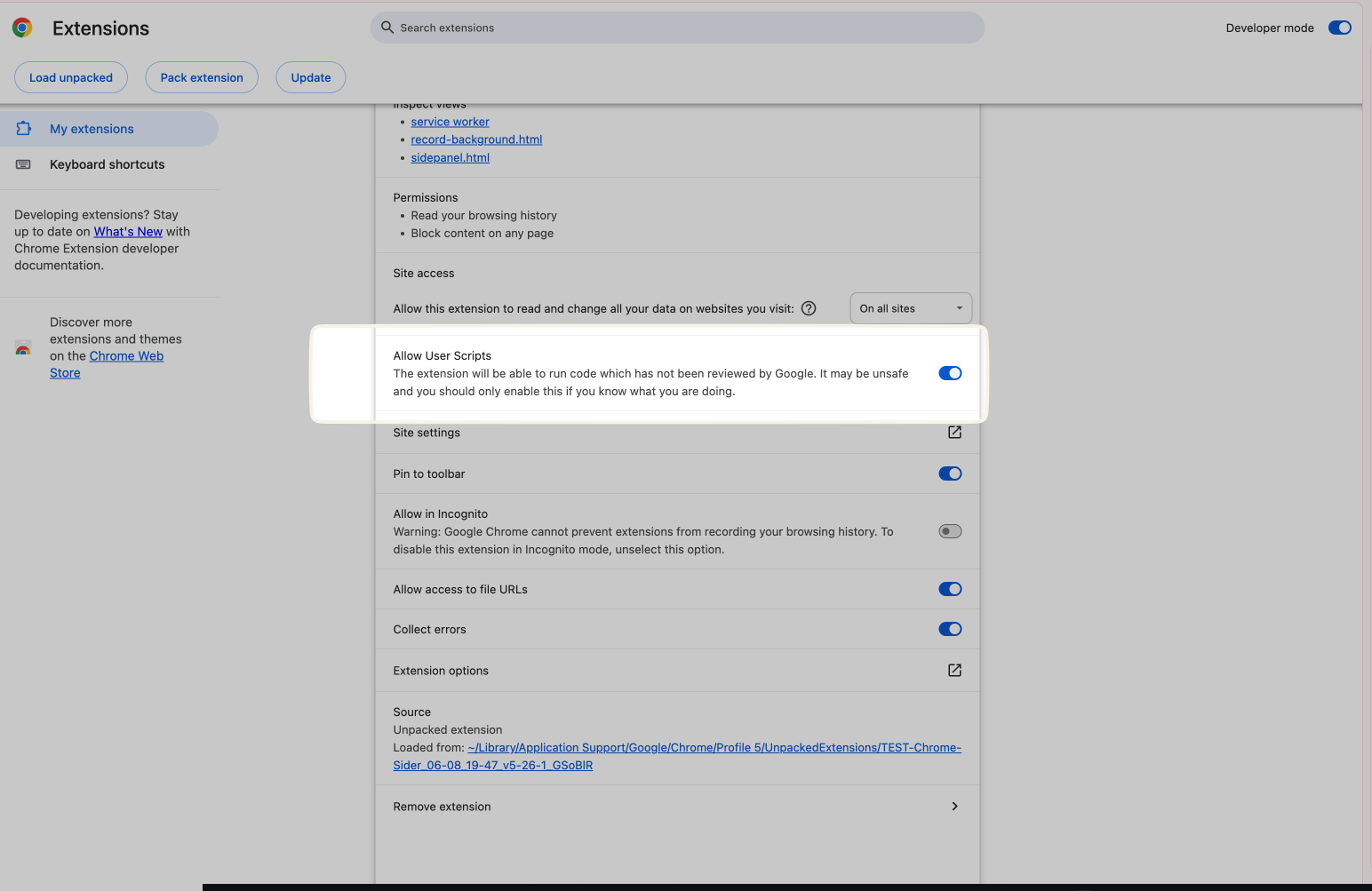
Sider Code needs User Scripts permission to apply changes on webpages.
In the setup panel, click Open Extension Settings.
This will open the Chrome extension settings page.
Find Allow User Scripts and turn it on.
After enabling it, return to the Sider Code panel. The first setup step should now be marked as completed.
Step 3: Install Sider Operator
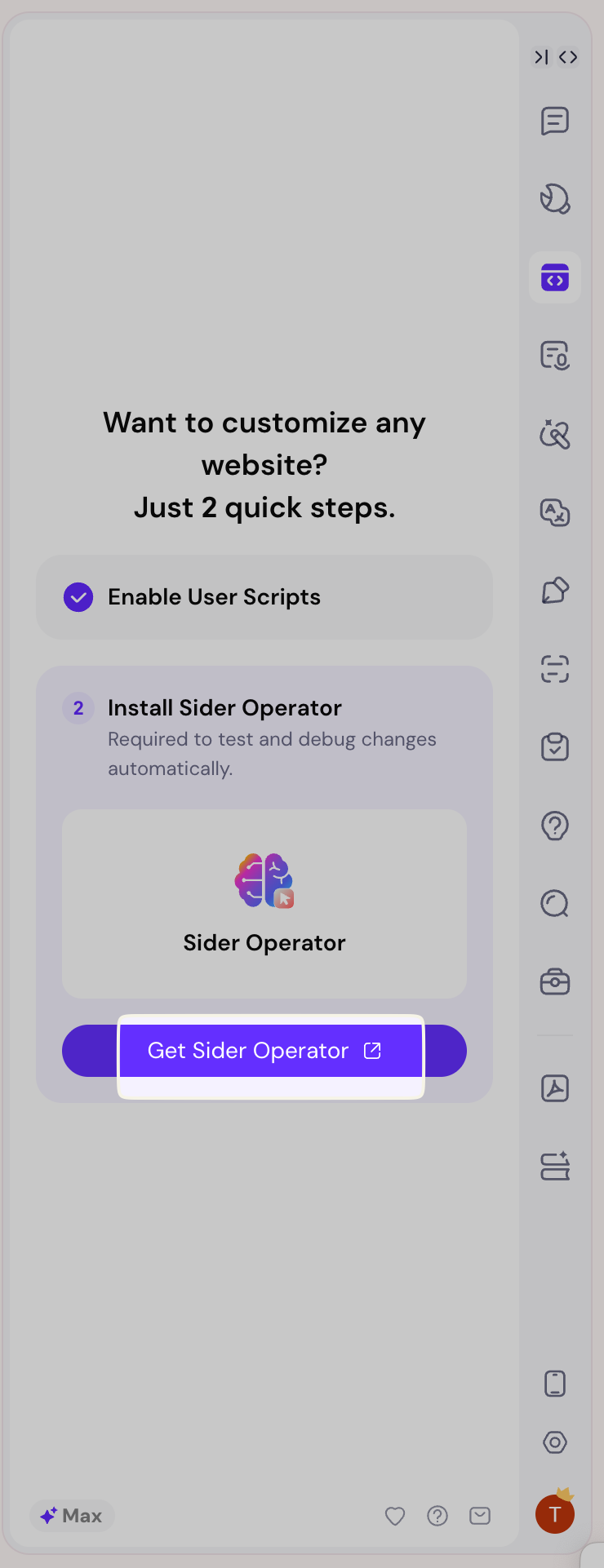
Next, install Sider Operator.
Sider Operator helps Sider Code test and debug webpage changes automatically, so your customizations can work more reliably.
In the Sider Code setup panel, click Get Sider Operator.
This will open the Sider Operator page in the Chrome Web Store.
Step 4: Add Sider Operator to Chrome
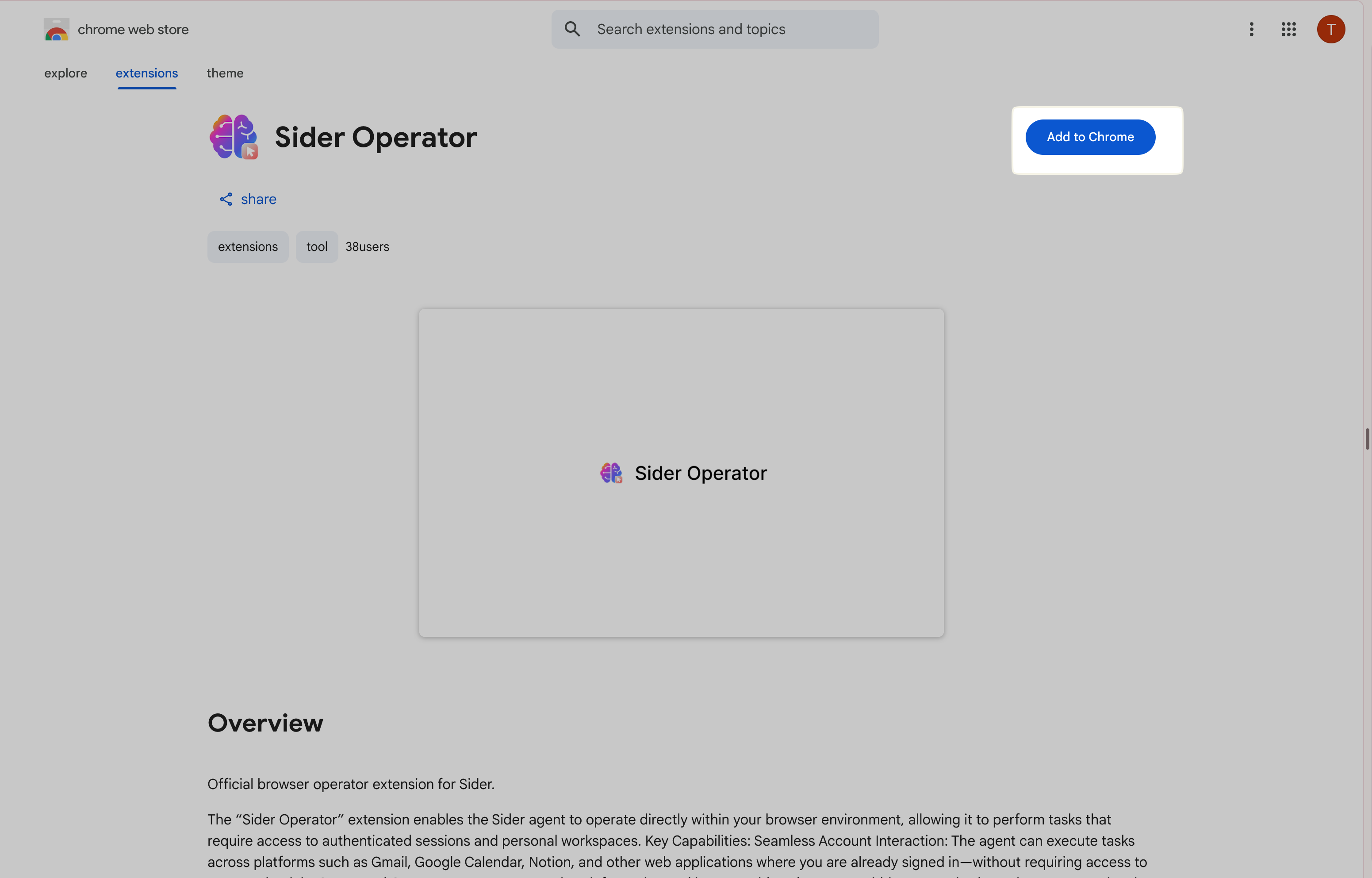
On the Chrome Web Store page, click Add to Chrome.
Chrome will show a confirmation window. Click Add extension.
Once the installation is complete, return to Sider Code and start customizing webpages.
How to Use Sider Code
Step 1: Open Sider Code
Open the webpage you want to customize, then click the Code icon in the Sider sidebar.
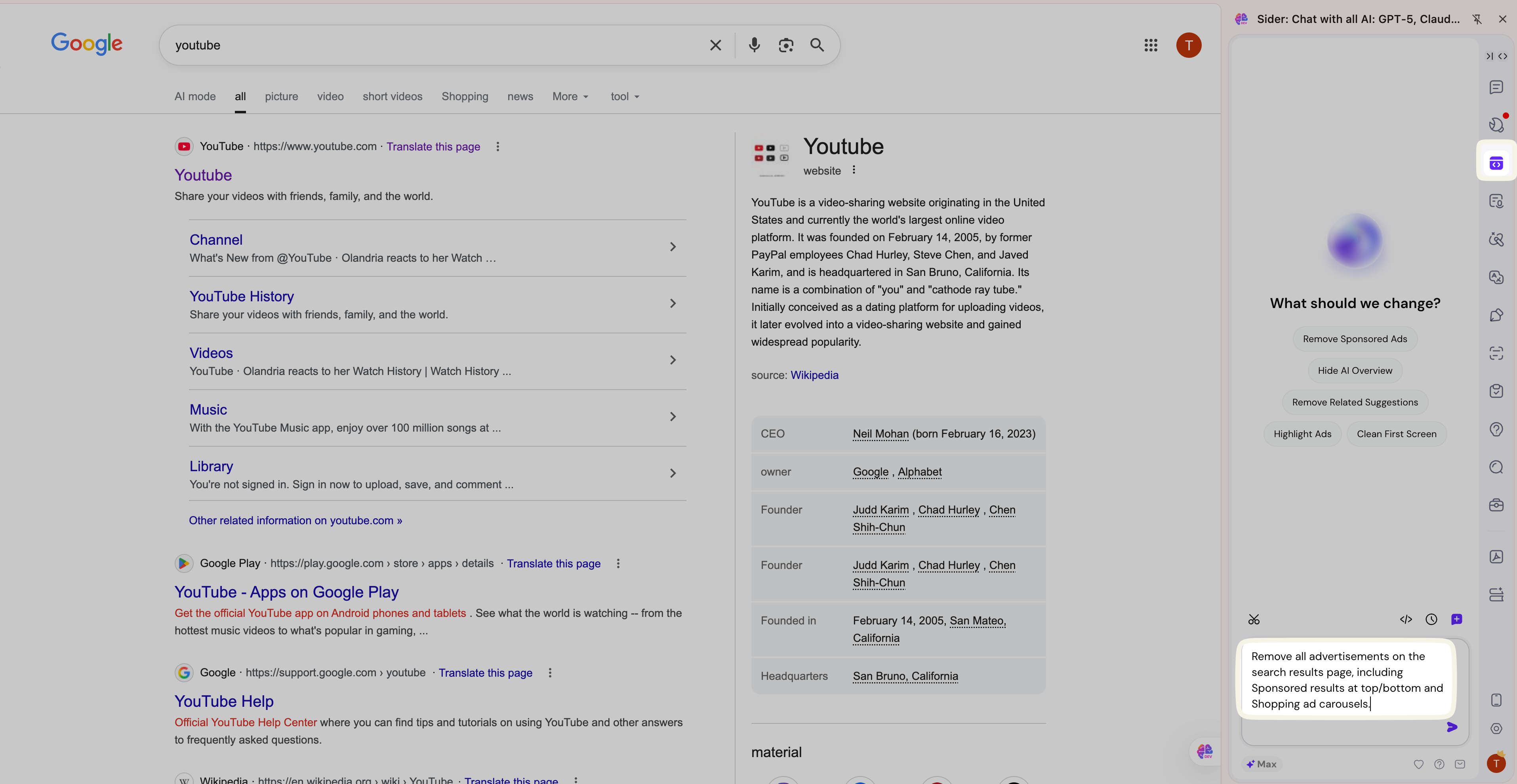
Step 2: Tell AI What to Change
Describe what you want in plain language.
For example:
- “Remove the sponsored posts from this page”
- “Add a floating table of contents”
- “Show product ratings next to each item”
You can also click a suggested prompt, such as Remove Ads, Switch to dark mode, Extract all images, or Auto-scroll page.
Step 3: Review and Refine
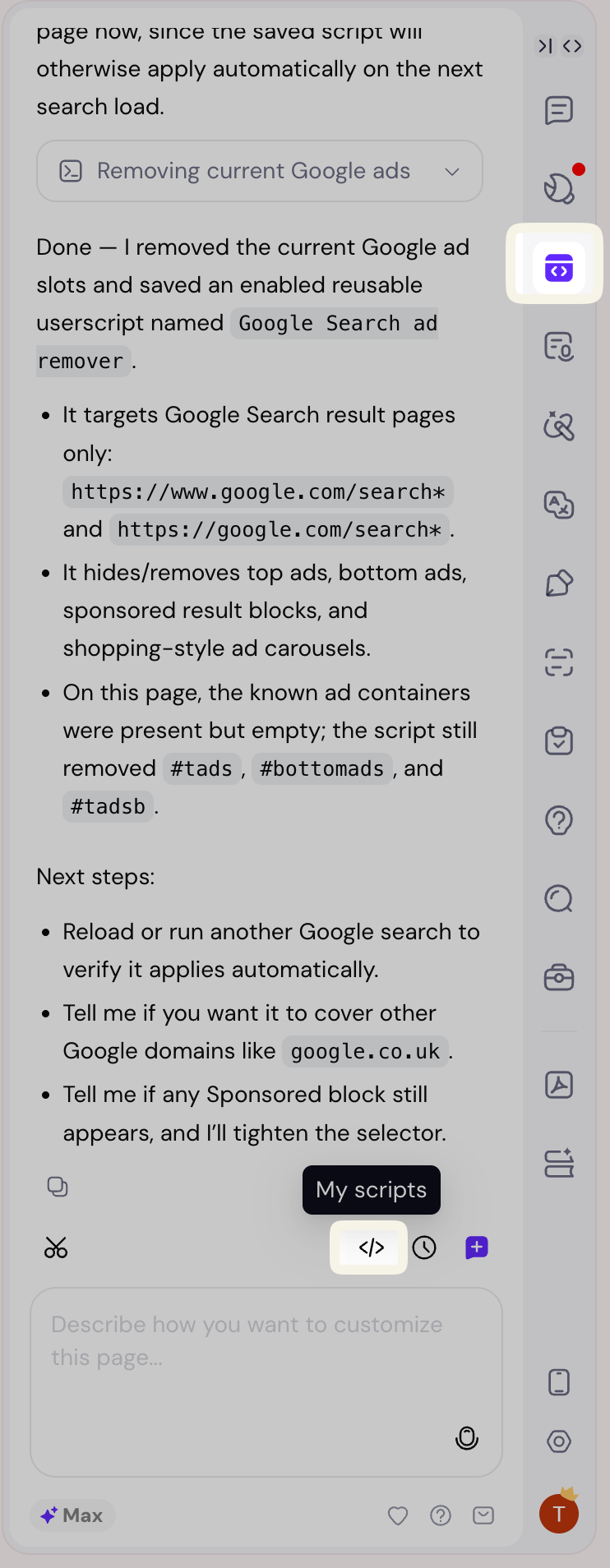
Sider Code will apply the changes to the current webpage.
If the result is not exactly what you want, continue with a follow-up prompt.
For example:
- “Make the font smaller.”
- “Keep the comments section.”
- “Only remove the right sidebar.”
- “Add more spacing.”
If a specific area does not look right, you can also take a screenshot of the area you want to change and tell AI what to modify.
For example:
- “Remove this section.”
- “Make this button smaller.”
- “Move this block higher.”
- “This area looks too crowded. Make it cleaner.”
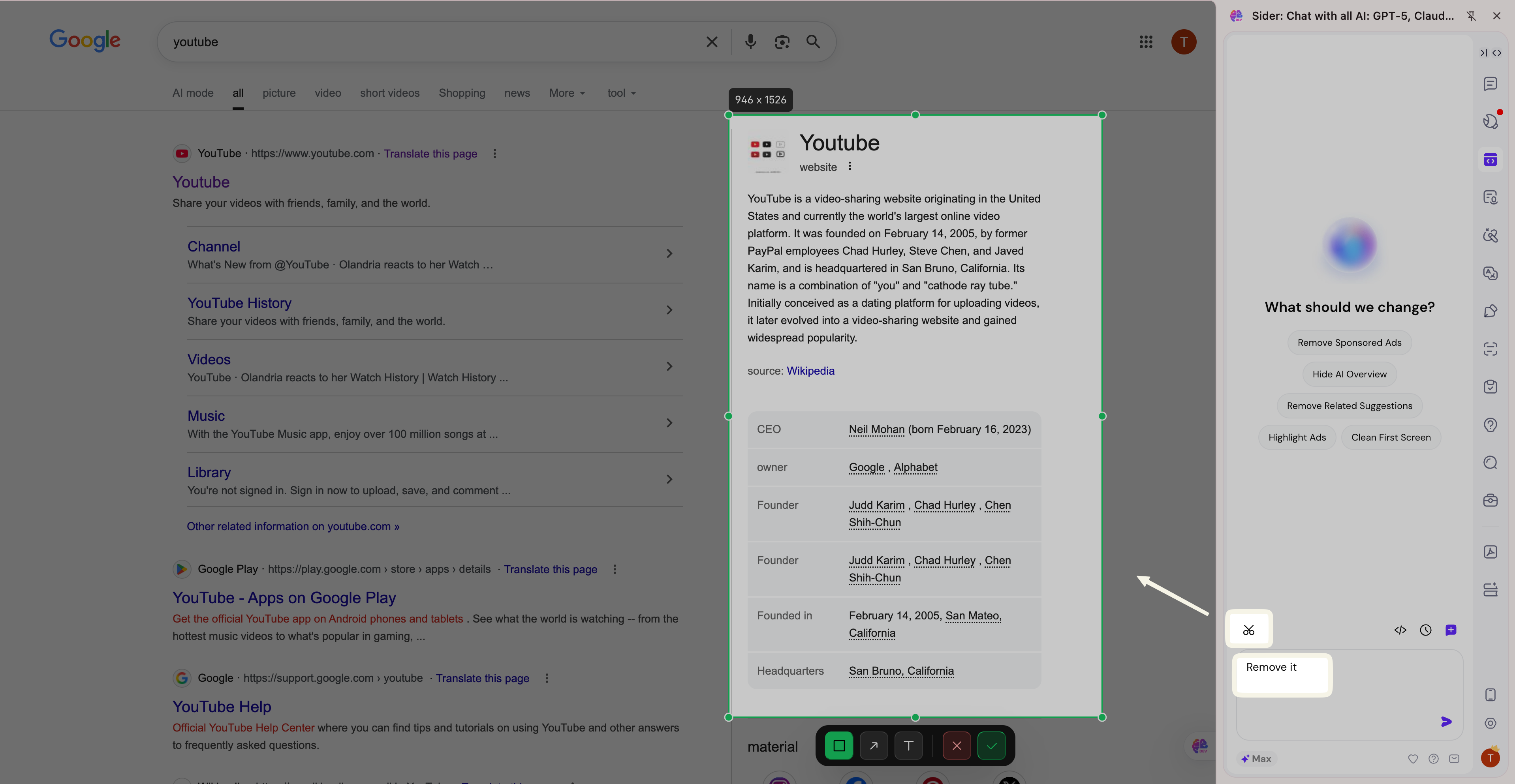
Screenshots help AI understand the exact location and make more precise changes.
For complex changes, you may need a few follow-up prompts to get the best result.
After a script is generated, refresh the page to see the full effect.
Manage Your Customizations
To keep your customizations organized, you can:
- Start a new chat for each customization Use a new chat when creating a different script, especially for different websites or different versions of the same website.
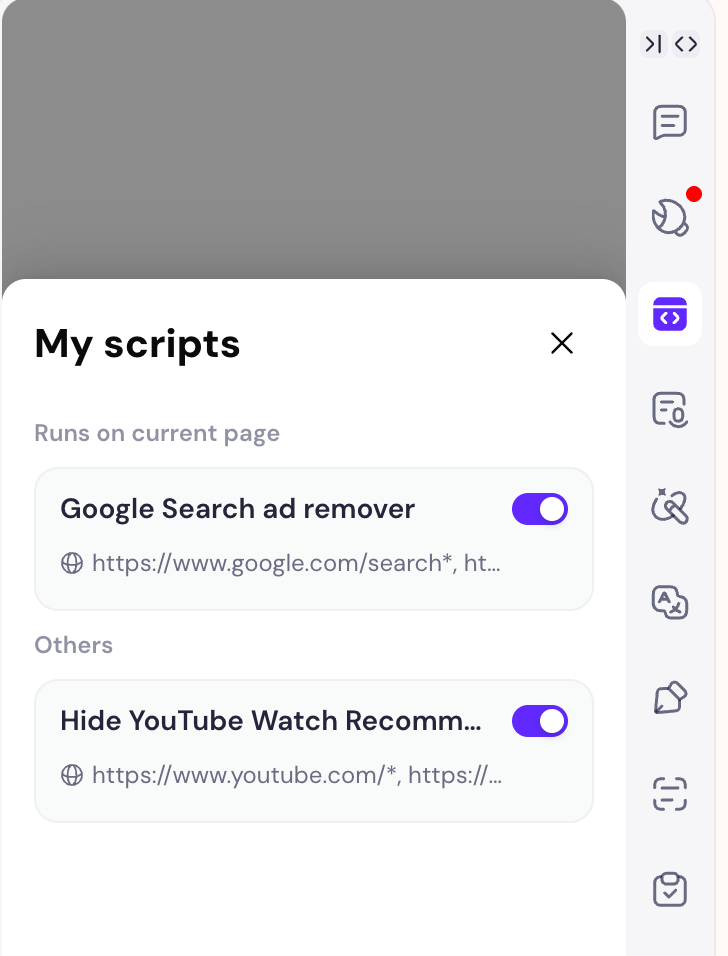
- View saved scripts in My Scripts Open the My Scripts panel to see all saved customizations.
- Turn scripts on or off anytime When a script is turned on, the customization will be applied automatically every time you visit the same website. You can turn it off anytime from My Scripts.
Be Specific with Your Instructions
The clearer your request, the better the result.
Instead of: “Make this better”
Try: “Hide the right sidebar and make the article content full-width.”
Instead of: “Change the design”
Try: “Make the page cleaner, increase the font size, and reduce spacing between cards.”
FAQ
Will my changes stay after I refresh the page?
Yes. As long as the script is turned on, saved customizations will continue to work when you revisit the same website.
Can I turn off a customization?
Yes. Open the My Scripts panel and toggle the script on or off.
What should I do if the result is not perfect?
Send a follow-up prompt and describe what needs to be changed.
You can also take a screenshot to point out the exact area that needs improvement.
Can I use Sider Code on any website?
Sider Code is designed to work on many websites.
Some websites may have special restrictions or complex layouts, so certain changes may require additional follow-up prompts.
How are credits charged for Sider Code?
Credits are charged dynamically based on the complexity of the task.
If Sider Code has already generated a script, you will not be charged again for that previously generated script the next time you visit the same website.
However, if you use Sider Code to add an AI-powered feature, credits may be charged when the AI feature runs. For example, if you add a “refute” button under each ChatGPT response, credits may be charged each time you click the button to generate a rebuttal.
Who can use Sider Code?
Sider Code is available on the new paid plans: Lite, Plus, and Max.
Free users and users on older paid plans, such as Basic, Professional,Unlimited or Ultra, need to upgrade to one of the new paid plans before using Sider Code.
Can I use Sider Code in full-screen mode?
No. Sider Code currently works only in the Sider sidebar.
Because Sider Code needs to operate on the current browser tab, it is not available in full-screen mode.
Recent Articles

Products
Wisebase
©2026 All Rights ReservedTerms of UsePrivacy Policy